How Slate works, written as a syllabus.
You already know how to read one of these. Five minutes, no exam.
- Prerequisites
- Chrome on a laptop, your school's Canvas login, and a Slate code
- Setup time
- About 30 seconds, then a one-time 1 to 3 minute wait
- Where it runs
- Inside your own Chrome. Phones can't run extensions.
- Permissions
- Read-only. Slate never changes anything in Canvas.
§1What Slate is
Slate is a Chrome extension that reads your Canvas and builds one page with everything you have to do, in the order it's due. Then it goes further than Canvas does: it reads your syllabus, course Home pages, and Modules and adds the deadlines that only live there, like a reading assigned in class or an exam that's only on the schedule PDF.
On top of that list it plans tonight's work, does your grade math, and estimates how long things take. It works through the Canvas login you already have, so there's no password to give it.
§2Day one: your first sync
The first sync is the only part that takes any patience. Here's exactly what happens, by the clock.
| When | What you do / what you'll see |
|---|---|
| 0:00 | Add Slate to Chrome from the Chrome Web Store. A welcome tab opens. Chrome's install box says Slate can "read and change" your Canvas data. That's Chrome's standard wording for any site access. Slate only reads. See §3. |
| 0:10 | Pin it. Click the puzzle piece 🧩 at the top right of Chrome, then the pin next to Slate for Canvas. Now the Slate icon lives in your toolbar. |
| 0:20 | Open your school's Canvas in a tab and log in the way you always do. |
| 0:30 | From that Canvas tab, click the Slate icon. Paste your code
(SLATE-XXXXXX) and press Sync from Canvas.
If Chrome asks to let Slate read your Canvas, click Allow. It only
covers that one site. Most schools never see this. |
| ~0:50 | Your timeline is ready. Every Canvas assignment, quiz and exam is in.
Press Open dashboard. The first time, Slate asks how long homework, quizzes and readings
usually take you: tap the closest time for each (or skip). Every estimate starts closer to how you work.
The popup says Synced: 5 courses, 84 assignments. Reading syllabi in the background… |
| 1 to 3 min | Slate reads your syllabi. This is the slow part, and it's
the part that finds what Canvas doesn't list. You can close the popup and use the dashboard,
it fills in by itself. Just keep Chrome open and the laptop awake.
If your school uses Simple Syllabus you'll see a few tabs open and close on their
own. That's Slate reading each syllabus. Leave them alone; they close themselves.
When it's done: Done: 23 deadlines read from your course documents. |
| After | That's it, forever. Slate re-syncs on its own whenever you open Canvas or the dashboard, and every few hours while Chrome is open. Press Sync (or Refresh in the dashboard) whenever you want it right now. |
Big semester with lots of courses? The very first syllabus read can take a few minutes. Later syncs reuse what was already read and are much faster.
§3Course policy: read-only
Slate reads your Canvas. It never changes it.
Nothing you do in Slate touches Canvas. Checking something off in Slate is a note to yourself, not a submission. Your grades, your submissions, and your messages are exactly as you left them.
- Reads your courses, assignments and grades
- Reads your syllabus, Home pages and Modules
- Shows them on one page, in your browser
- Keeps itself up to date while Chrome is open
- Submit, edit, or delete anything
- Post, comment, or message anyone
- Change a grade, date, or setting
- Ask for or see your password
What stays on your laptop, and what doesn't
- Stays in your browser: your courses, grades, assignments, check-offs, and the minutes Slate times. They never go to Slate's server.
- Shared anonymously, only if you log a time: when you tell Slate how long something took, the minutes go into class medians under a scrambled label the server can't read. Nobody's individual time is ever shown.
- Sent to be read: your syllabus and course Home pages go to Slate's server so the dates in them can be found, and nothing else. Every date it finds comes back with the exact sentence it came from.
- The day-3 check-in: a few days in, Slate asks once whether its time estimates feel too long, about right or too short. If you answer, that answer and your optional note go to the developer, with your school's Canvas address and the Slate version, and no name or grades.
- Don't want that? Open the popup, expand Read my syllabus & Home page, and switch it off. Then no documents leave your browser; you just won't get syllabus-only deadlines.
Slate is a planner, not the official record. If Slate and your professor ever disagree, your professor wins, and Slate flags the disagreement instead of hiding it.
§4What every page does
The dashboard has eight pages down the left side. You'll live on the first two; the rest are for when you need them. (Screenshots use sample data.)
Timeline
Use it: every day, first.
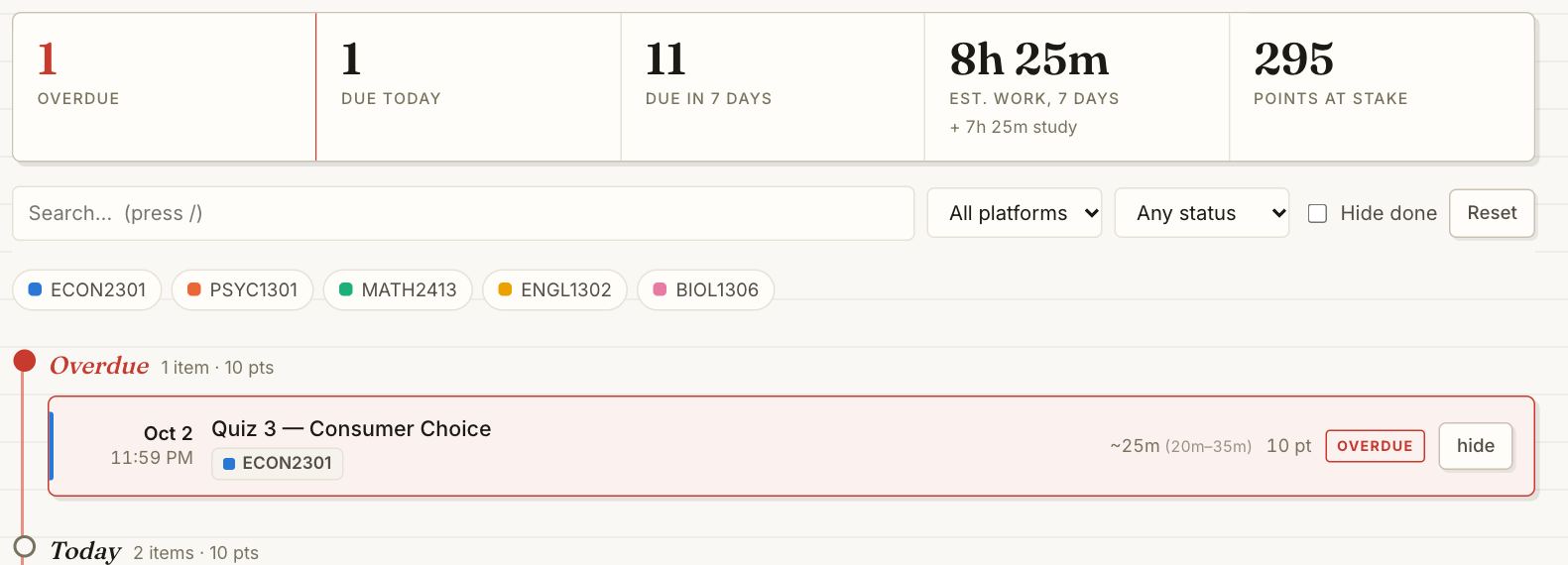
Everything you owe, grouped Overdue, Today, Tomorrow, This week. The numbers across the top are your week at a glance. Search, filter by course, and hide what's done.
Tonight
Use it: when you sit down to work.
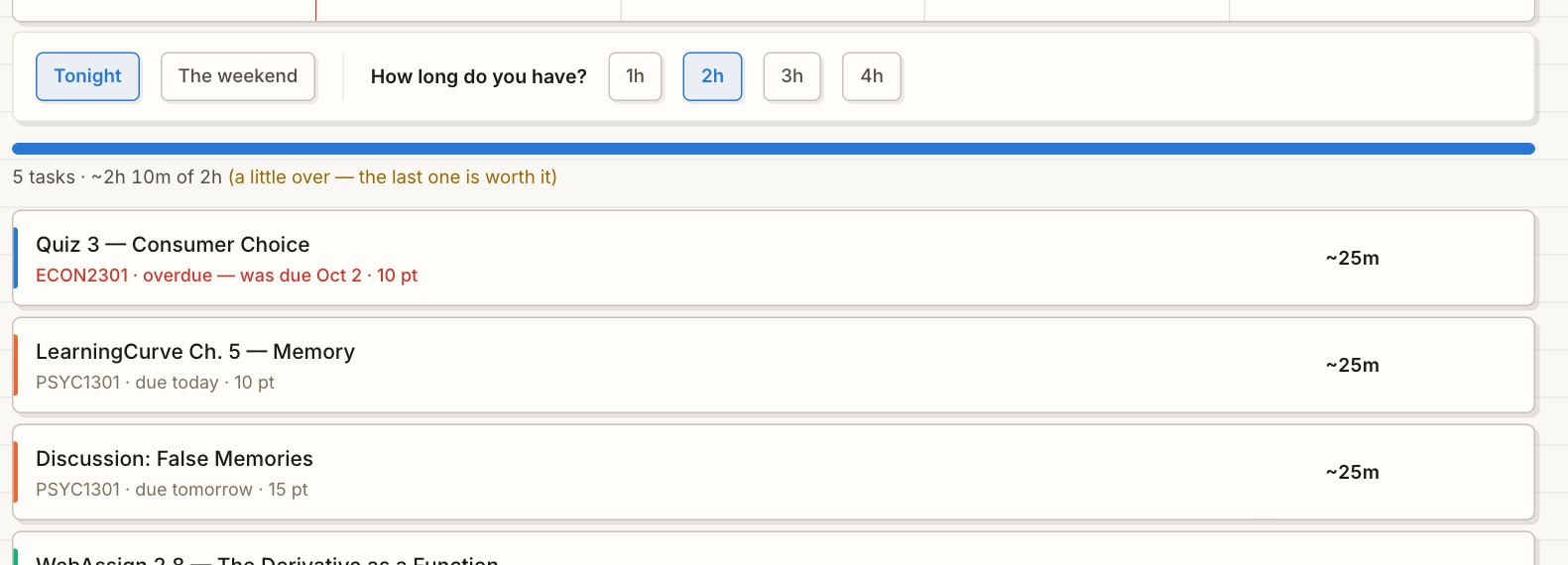
Tell it how long you have (1h, 2h…) and it builds a plan that fits: late work first, then what's due soonest, then studying. Exams don't show up as "do Exam 2": Slate turns each one into study sessions on the days before it (about 2 hours over 4 days for an exam, 4 for a final, more if it counts for a lot of your grade), and a session you skip comes back as catch-up. Big assignments get the same treatment: a 2-hour problem set due Thursday becomes two one-hour parts on the days before, so nothing lands on one night. Study time is sized by what's at stake: how much of your grade the exam is worth and where you stand in the course. Switch to The weekend to plan through Monday.
Calendar
Use it: to see heavy weeks coming.
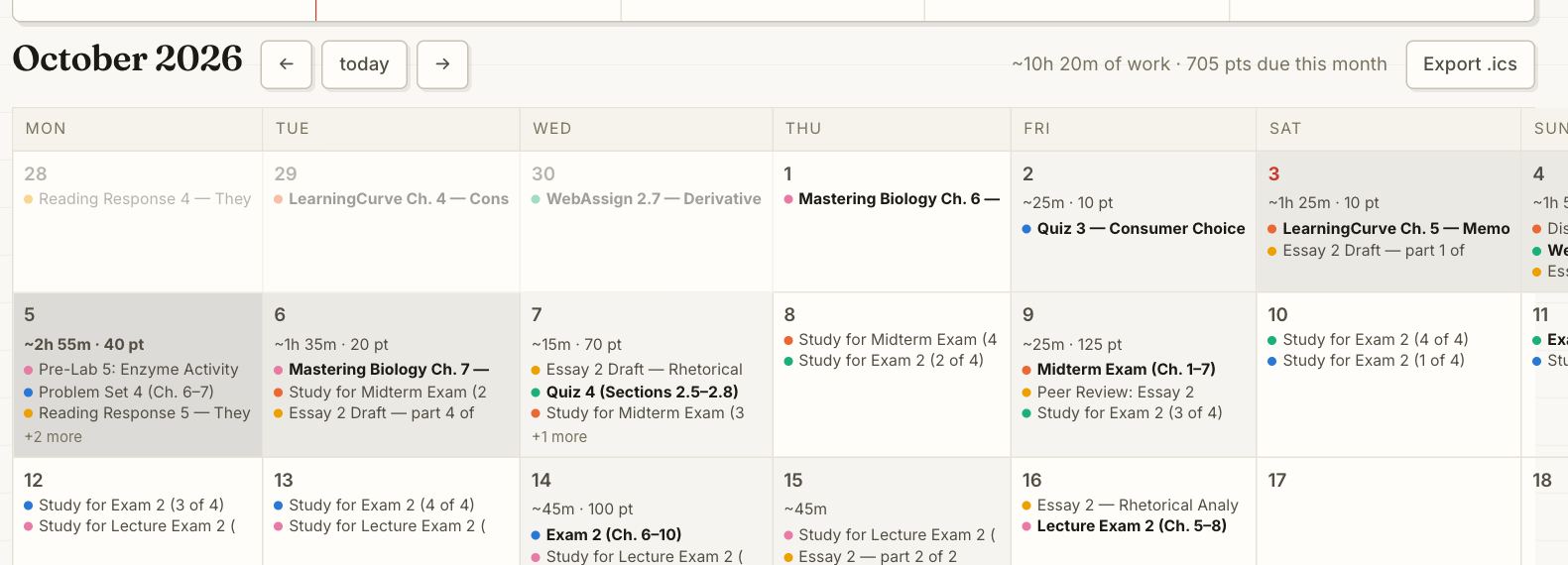
The month, with each day shaded by how much work is due. Export .ics drops your deadlines into Google or Apple Calendar.
Tests & quizzes
Use it: at the start of every week.
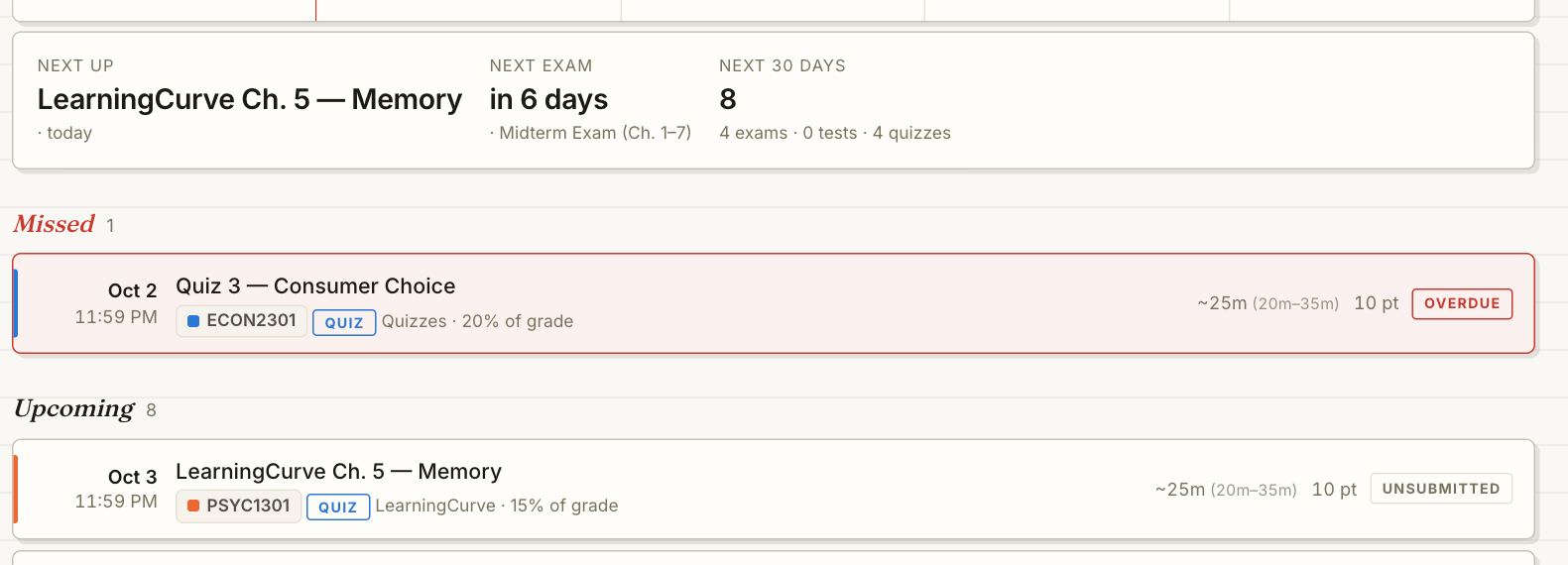
Every exam and quiz in one list, including the ones that only exist in a syllabus. Shows your next exam and how many are coming in the next 30 days.
Workload
Use it: before you say yes to plans.
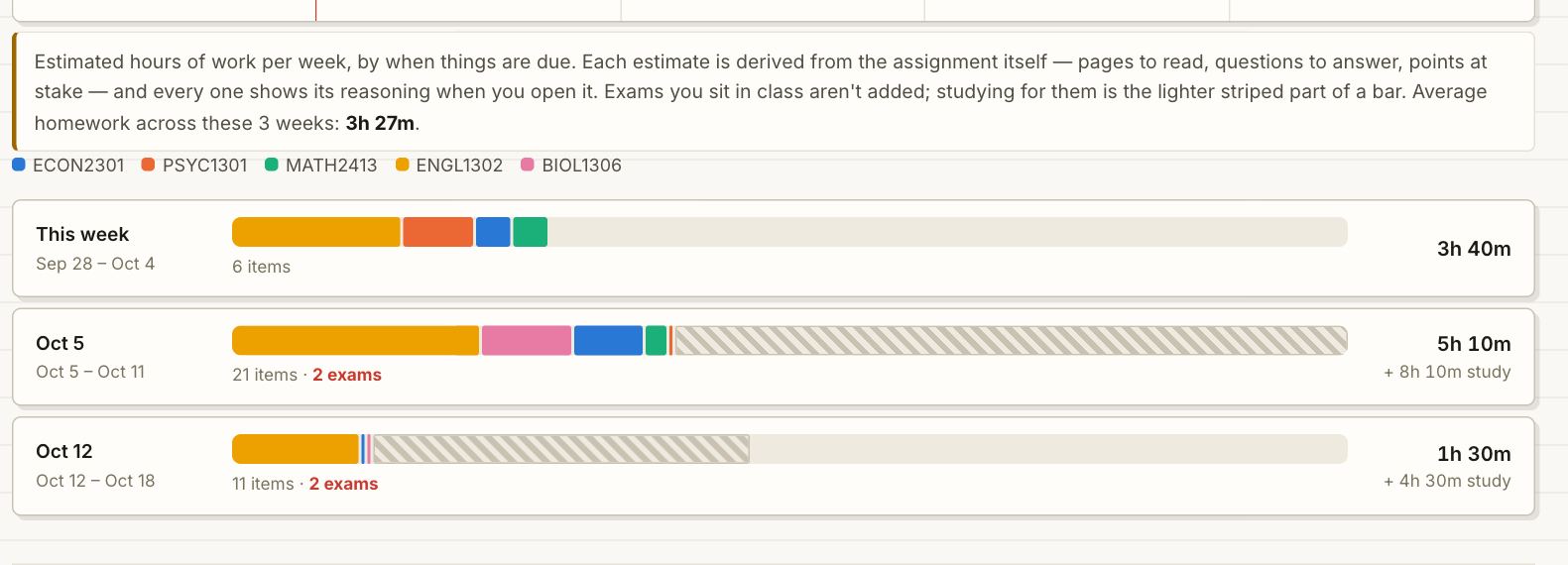
Hours of homework per week, split by course, with exam weeks called out. Studying for exams shows separately (the striped part), and exams you sit in class aren't counted as homework.
Grades
Use it: when a grade posts.
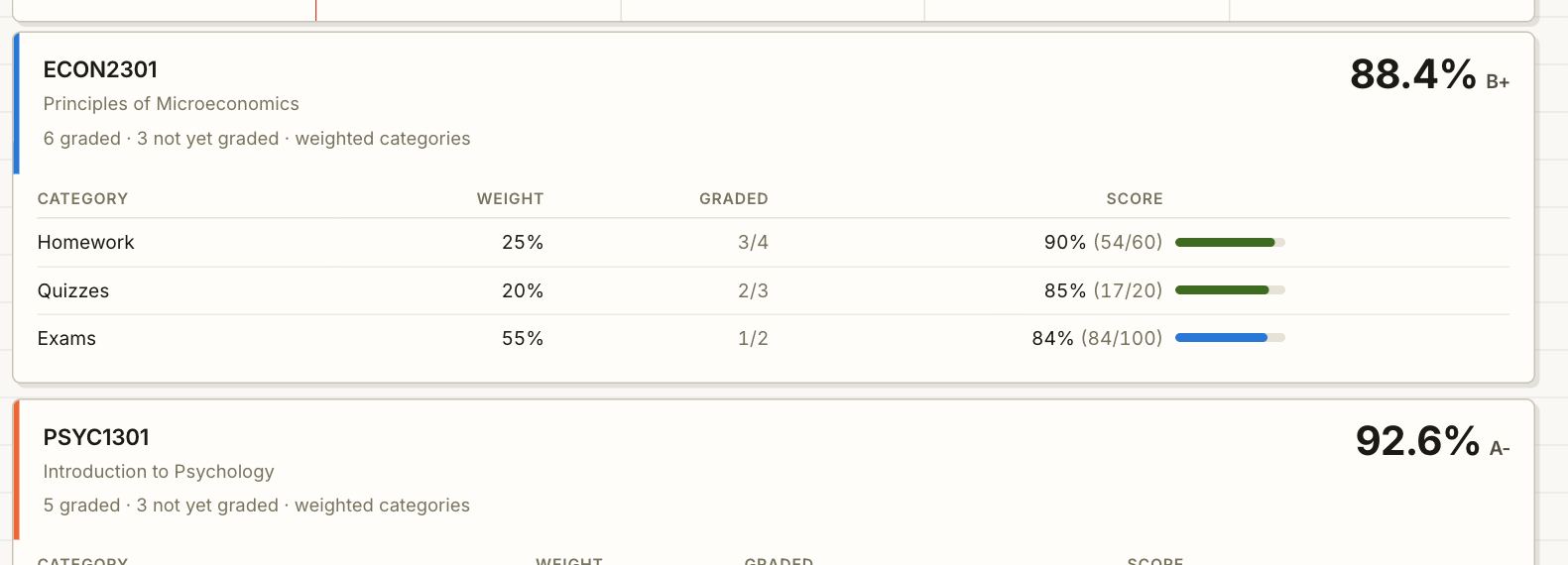
Your grade in each course broken down by category, using the weights your professor set in Canvas. Zeros are flagged so a missing assignment can't hide.
What-if
Use it: before a big exam.
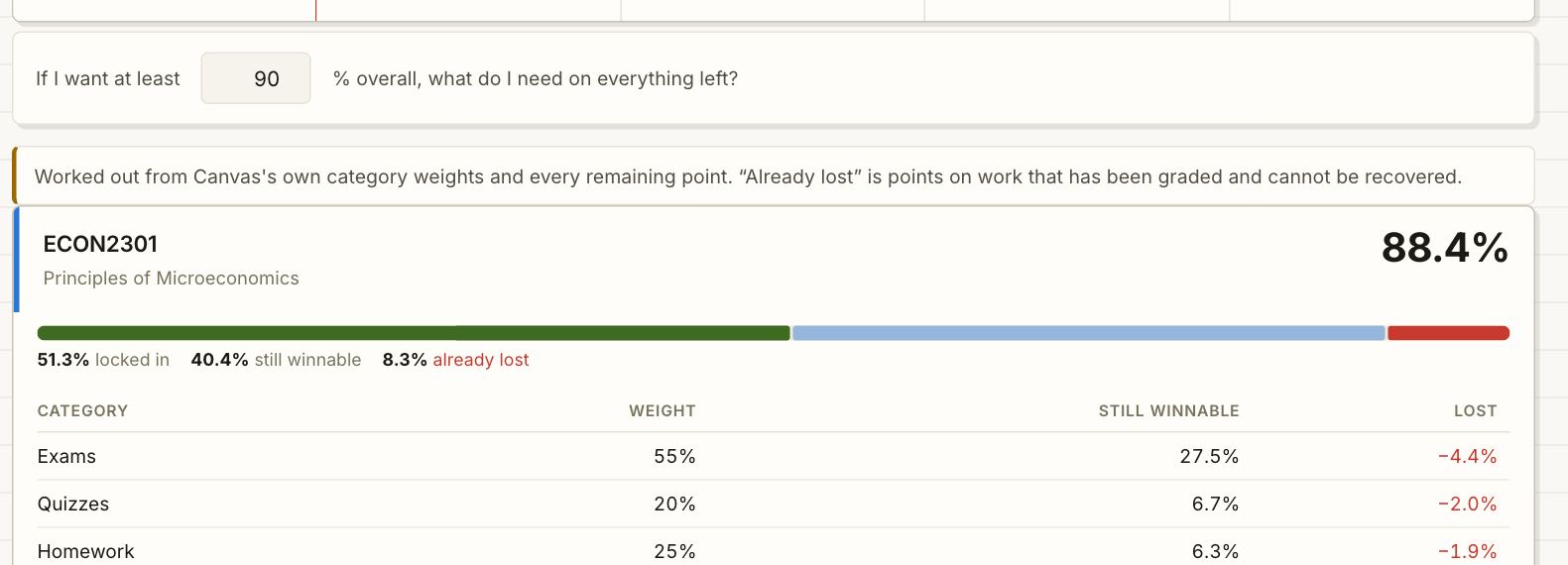
Type the grade you want and see what you need on everything left, how much is locked in, and how much is already gone. All the math is shown.
Courses
Use it: to dig into one class.
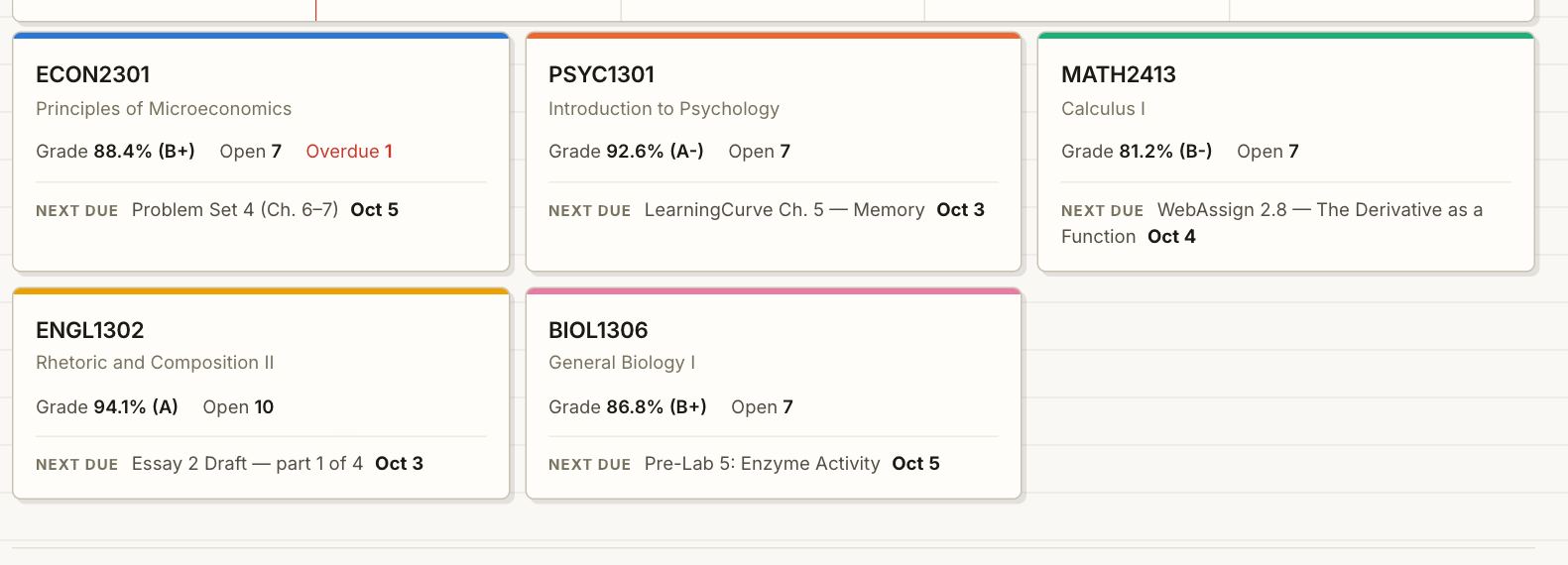
One card per course: grade, open work, what's due next. Click in for that course's full list, its Home page, and the syllabus deadlines Slate found.
§5How to read a row
- ~55m
- How long Slate thinks it takes, with a likely range like (35m–1h 15m) until it has real data. Open the row to see exactly how it was worked out. It blends what it knows: the assignment's size (pages to read, words to write, problems to do, points), your own times on earlier ones like it (your last WebAssign predicts the next one), and other students' times on the same assignment or the same kind of assignment in that course, including past semesters. Your times come from the minutes an assignment's Canvas page is open in front of you (breaks don't count) and a one-tap "how long did it take?" after you submit. The more real times, the more they outweigh the guess, and the range disappears. You can also tell Slate your usual times (homework ~45m, quizzes 10-15m, per course if they differ) after your first sync (Slate asks once, with one-tap times), or any time from Set your usual times under "How long do you have?" on the Tonight page. That's one more input to the blend, not an override.
- The quote
- Rows Slate found in a syllabus carry the exact sentence they came from. No quote, no deadline: Slate never guesses a date.
- Stamps
- OVERDUE is late and unsubmitted. UNSUBMITTED is open Canvas work. BEFORE CLASS is a deadline from your syllabus, due by that day's class. Submitted work drops into "Already done" on its own.
- study · exam Wed
- One of the study sessions Slate plans before an exam. Nothing to turn in; check it off when you've studied. Study time is shown on its own (the + study line under "Est. work" and the striped part of Workload bars), and the exam itself isn't counted as homework since you take it in class.
- part · due Thu
- One part of a big assignment, split across the days before it's due so it never lands on one night. Checking a part off is a note to yourself; the assignment is done when you submit it in Canvas.
- reading · not due
- A reading your syllabus lists for that class day. Nothing gets turned in, so it never counts as overdue and Tonight plans it after graded work. Not doing a class's readings? Open one and press Hide its readings, or use the switch on that course's page.
- Checkbox
- Readings and anything Canvas can't track get a box. Checking it is a note to yourself; it doesn't submit anything.
- Things to know
- The line under the date at the top. Open it for heads-ups, like a syllabus date that disagrees with Canvas.
§6After day one
- It keeps itself current. Slate re-syncs whenever you open Canvas or the dashboard, and every few hours while Chrome is open. The top of the dashboard always says when it last refreshed.
- A red "!" on the Slate icon means it hasn't synced in over 12 hours, almost always because Canvas signed you out. Open Canvas, log in, and it catches up on its own.
- Date changes. When a professor's announcement says something moved ("Quiz moved to 9/30", an extension, a cancelled class), it shows under things to know at the top of the dashboard for two weeks.
- Professor keeps the schedule somewhere else? In the popup, Add a website Slate should watch takes a link (a Google Doc, a course website), and Add a syllabus by paste takes copied text.
- Meetings too. Paste a calendar feed link (.ics) to put advising, interviews, or club meetings on the Calendar page beside your deadlines.
§7Office hours
Common questions, answered. Still stuck? Press Report a problem at the bottom of the Slate popup. It opens an email with the technical details already filled in (version, when Slate last synced, what went wrong; never grades or assignment names), so you just add what happened.
It says to log into Canvas, but I'm logged in.
Click the Slate icon while you're looking at a Canvas page, not from a blank tab. That's how Slate learns which Canvas is your school's. If Canvas logged you out in the background, refresh the Canvas tab, log in, and press Sync again.
Chrome asked me to allow Slate on a site. Is that safe?
Yes. Some schools run Canvas on their own address (like canvas.yourschool.edu). Chrome asks once so Slate can read Canvas there. The permission covers only that one site, and Slate still only reads.
My timeline showed up but syllabus deadlines didn't.
They arrive a minute or three after the timeline. Keep Chrome open and the dashboard fills in by itself. If the popup says a document "couldn't be read yet", press Sync again later. Also check that Read my syllabus & Home page is switched on in the popup.
Tabs opened and closed by themselves. What was that?
That's Slate reading your Simple Syllabus documents. Simple Syllabus only works in a real tab, so Slate opens each one in the background, reads it, and closes it. It doesn't click or change anything there.
It's been more than five minutes.
Close the popup and open the dashboard: if your assignments are there, the sync worked and the syllabus pass is just slow (lots of courses, long documents). If the laptop went to sleep or Chrome closed mid-sync, open Canvas and press Sync once more. Anything already read is reused, so the second try is faster.
The time estimates feel off.
Set your usual times: on the Tonight page, under "How long do you have?", press Set your usual times and tap how long homework, quizzes and readings take you (per course if they differ). Then just use Slate: it times you on each assignment's Canvas page and asks once after you submit, and after a few real times your own pace takes over. Open any row to see exactly what its estimate is built from.
A date looks wrong.
Click the row. Canvas dates come straight from Canvas. Syllabus dates show the sentence they came from, so you can check it yourself. When Canvas and the syllabus disagree, Slate keeps Canvas's date and flags both. Overdue items you know are wrong can be hidden with hide.
It's showing readings I never actually do.
Readings are labeled reading · not due because nothing gets turned in. If you skip them for a class, open any of them and press Hide its readings, or go to Courses, pick the class, and press Hide readings. They disappear from every page; the same button brings them back.
Does it work on my phone?
Not directly. Chrome on phones can't run extensions. Install on your laptop. The Calendar page's Export .ics will put your deadlines into your phone's calendar.
I lost my code.
Go to slateforcanvas.com/recover and enter the email you checked out with.
I switched schools or Canvas accounts.
In the popup, click change school, then sync from your new Canvas tab. Each code belongs to one student's Canvas account.